

16 Suggestions for Getting the Most Out of Your Chromebook
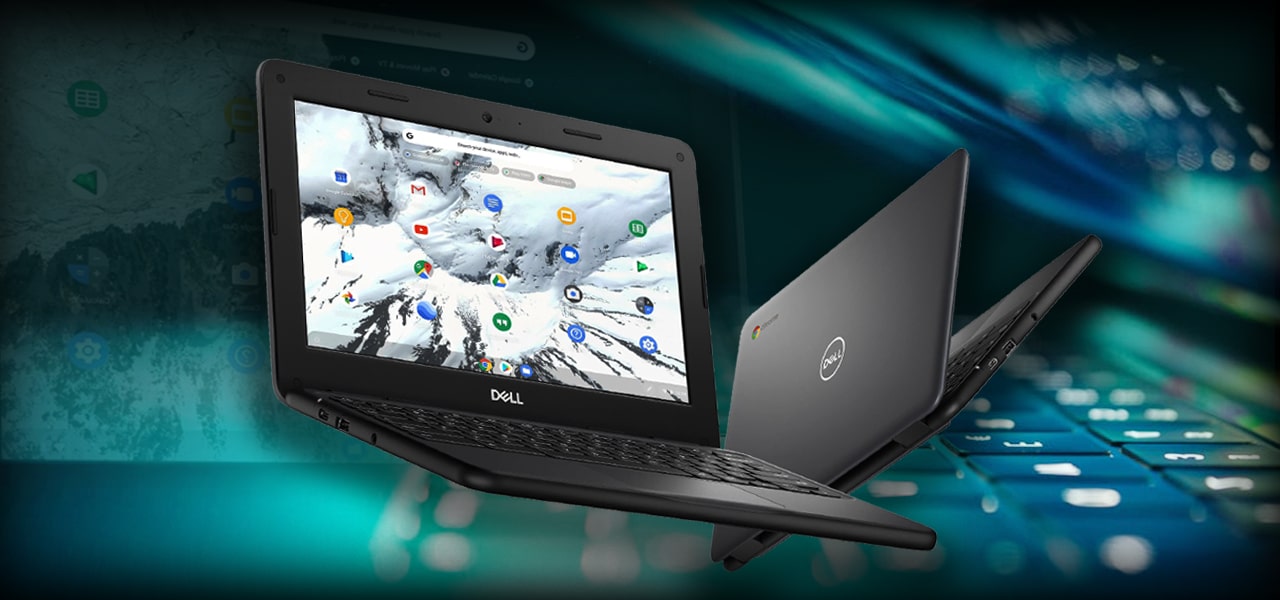
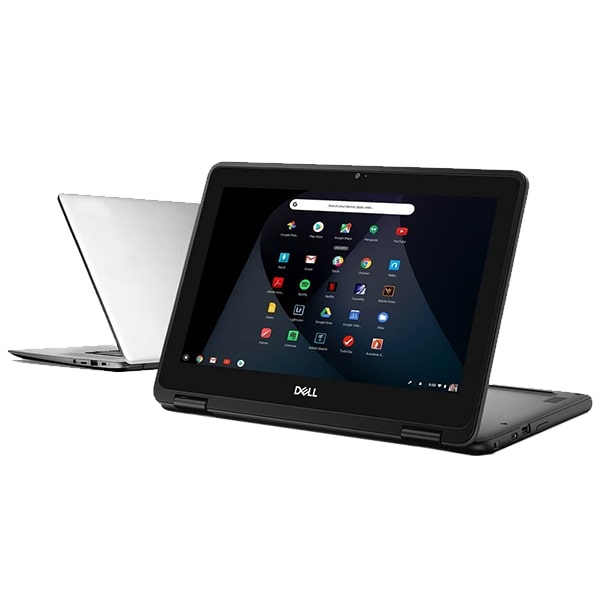
Chromebooks are known for their simplicity and user-friendly operating system but beneath the intuitive outer layer, there’s a world of advanced options. Chromo books are quite popular and most people prefer buying a used dell chromebook to save costs and enjoy a fulfilling user experience. However, there’s so much that people don’t know. Therefore, here are some suggestions for getting the most out of your Chromebook.
Understanding the Chromebook OS:
1. The drawer-like interface of the chrome launcher is an impressive and powerful search tool. You can access it by pressing the everything key (launcher key or search key). It can also be accessed by clicking on the circle icon located on the lower left of the screen. Once it pops open, you can instantly start typing and find apps, open websites, and get ask specific questions without having to click or dig manually.
2. The launcher can do much more than just instantly search for apps and files, as you can use google at a system level by performing calculations. Instead of opening the calculator, you can just type your calculation or unit conversion directly on the search.
3. If you are using the new Chromebook, it might also feature the Google Assistant portal on the everything menu or search menu. You can use Google Assistant to get reminders, create a new document, schedule notes, and much more. Most of the attest Chromebook models come with more innovative features.
4.. There’s an incredibly helpful shortcut key to access the fully extended app drawer area without launching the screen. Press the shift and Everything key together to do that.
5. If you are not too fond of the shelf on the bottom of your Chromebook when using apps. Well, you can either right-click or long-press the shelf and select the automatically hide option. This would hide it when you open an app or window. You can al
App Management:
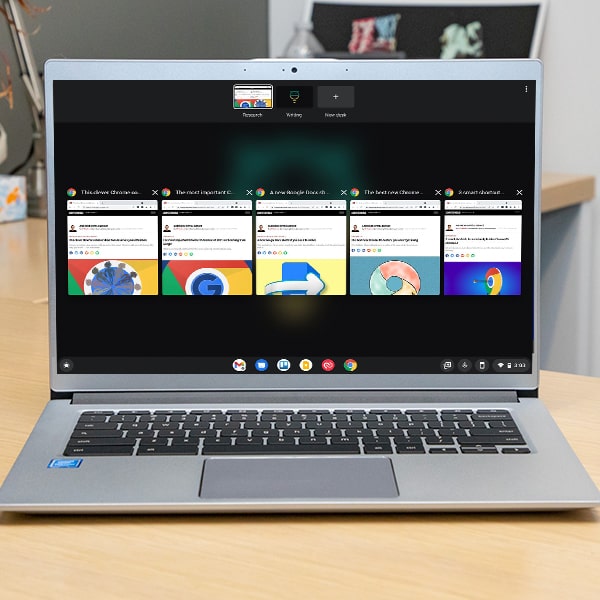
6. Most people are unaware of this but a Chromebook is comprised of a pretty handy interface that allows people to juggle with multiple apps and windows. You can access that by hitting the bottom with the box and two lines on the keyboard that is located on the left to the brightness controller button. It will allow you to switch apps and you can use the tab to scroll.
It also allows you to close any app when accessing the app management interface by clicking on the “x” on top or by swiping up or down (depending on that you own a touch supported Chromebook)
7. You can access the app management interface with a simple gesture. You can use three fingers to swipe up on your trackpad and the interface will pop up. Once you are all done swipe down with three fingers to return to whatever you were working on.
8. If you are using your Chromebook n tablet mode, swiping up one will show the shelf, and swiping again and holding it will open the overview interface, and swiping up and letting go would return you to your desktop screen.
9. You can use two apps at the same time with the split-screen option. All you have to do is open the overview settings and drag any app to the left or right side of the screen and once you see that side of the screen is lit up then you can set up the other side of the screen. This allows you to use two apps at the same time without switching programs.
10. You can adjust the split-screen size of each window by pressing and holding the black bar in the center of the two screens. You can now drag that bar to any side increasing or decreasing the size of any window.
Managing Windows on Chromebook:
11. You can make your switching window or apps easier by using Alt + Tab to move back and forth with multiple windows or apps and select anyone you wish to work on.
12. You can move backward with the Alt-tab app switching by holding down shift along with Alt and using tab to move right to left instead of left to right.
13. You can snap a window or app to the left or right side of your screen. Press Alt +Right bracket” [“to snap it to the right side and use Alt + Left bracket “]” for snapping on the left. Repeat the same sequence to restore it to its prior position.
14. You can maximize the app window by using Alt and = key and by repeating the same keys will return the window to its default size.
15. You can easily minimize a window by pressing Alt and minus key (-) and repeating the same sequence will bring it back to its previous position.
16. Chromebook makes it easier to operate multiple windows at the same time. It is an advantageous feature for people who tend to open multiple tasks at once. The virtual desk feature allows users to switch between desks and perform tasks at the same time.
Conclusion:
Chromebooks can make handling tasks simpler and easier but only if you know how to use them. These suggestions as mentioned earlier may be just a handful but are incredibly helpful for assisting you in performing daily tasks.
If you don’t own a Chromebook, the pocket-friendly way to get one is by opting for a used dell chromebook, and the best place to get a quality chromebook is Sibbex.